





BeamNotes shortcuts
WaveMe directs keystrokes to the currently selected plugin, and the compositor window captures them. This is built into the plugin API, and all plugins behave this way.
When we enable the BeamNotes plugin, keyboard shortcuts control the management of crosshairs. The BeamNotes plugin will always show a target symbol placed at the centroid of the current image.
When we move the mouse pointer over the compositor windows, a crosshair will appear.
Crosshairs can now be added either at the position of the target by pressing [ALT]+i or [ALT+a] for insert or append.
If we want to store the crosshair position (instead of the target’s position), we use [ALT] + [SHIFT] + i (or a), or simply [ALT]+I or [ALT]+A.
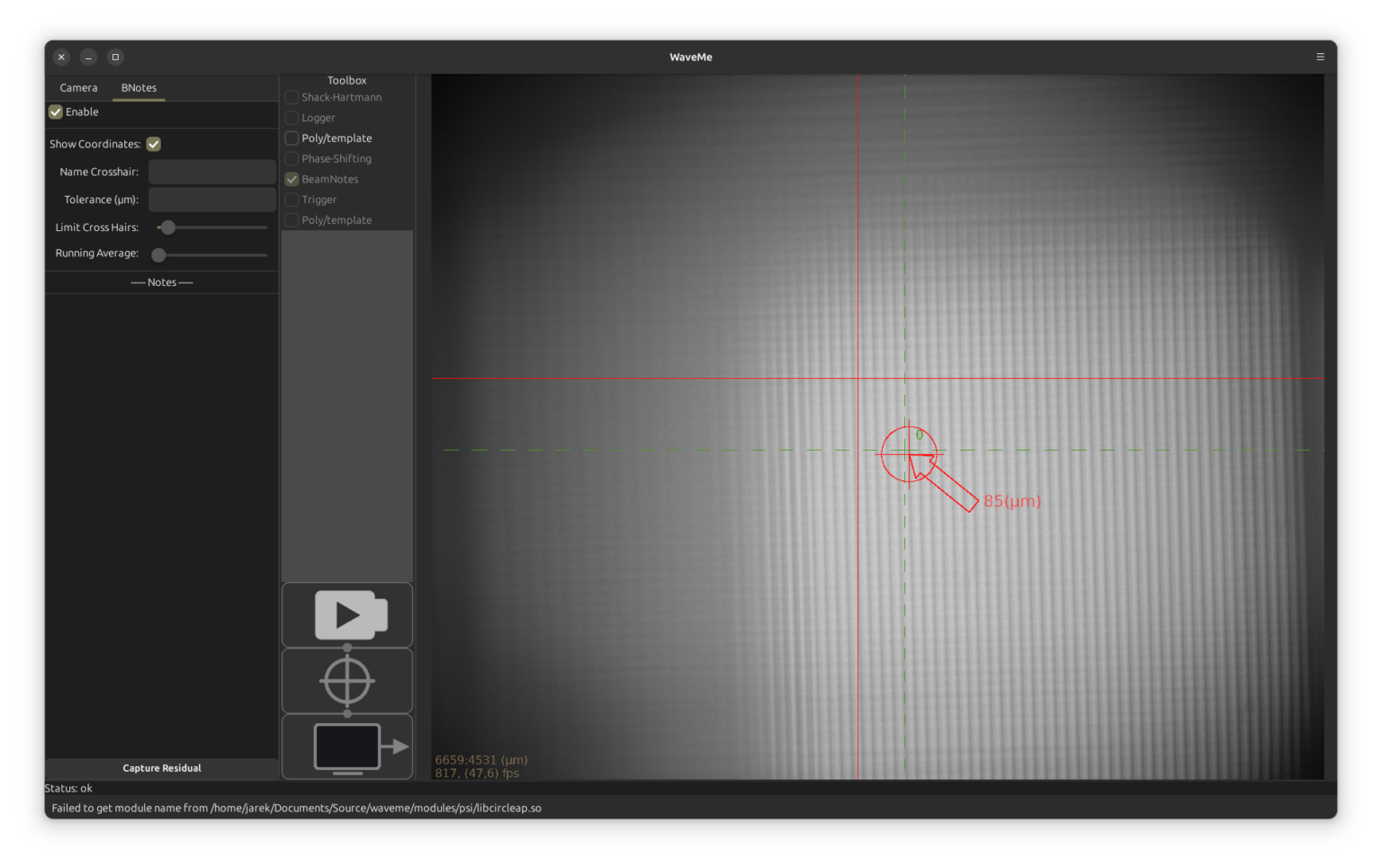
Unless we leave a “note”, the crosshairs will be numbered dynamically with 0 being the “current” crosshair.
The current crosshair is special because as soon as there is a “current” crosshair, the target symbol also shows an arrow and the distance from the center of the target to the current crosshair.
The size of the arrow is scaled non-linearly with the distance to make sure it is (almost) always visible except when the distance is really very small, while the size of the target’s circle corresponds to a default value of10 micrometers. If the current (green) crosshair has a tolerance value set, then the target circle’s radius will be using that instead.
The centering process is then to move the optical element, usually a lens, so that the target moves toward the (stored) crosshair and the arrow lands inside the target’s radius.
When done, we can select the next crosshair in our list with [ALT]+ “+” or go back with [ALT] + “-“.
Crosshairs are deleted with [ALT] + d
The annotation windows help us remember the purpose of the stored position. Using the “Name Crosshair” field, we would usually store a short note on where and why this crosshair was captured.
Longer notes can be stored in the “– Notes — ” text field. Apart from text, we can also include hyperlinks to relevant information. When we click on those links, WaveMe will open a browser window to open that link.
Links can be typed in directly using HTML, such as “<a href=”htts://somesite.com”>text</a> but the more convenient way is to drag the small icon left of the browser’s address field to the notes window. This operation will create a clickable object indicated with two underscores “__”. Then we can place the cursor between those underscores and type some text of our choice.
Summary of Keyboard Shortcuts
| Keybaord Shortcut [ALT] | Action |
|---|---|
| i | Insert crosshair at the target position |
| a | Append crosshair at the target position |
| I | Insert crosshair at the active position |
| A | Append crosshair at the active position |
| d | Delete current crosshair |
| m | Move current crosshair to target |
| C | Center crosshair to aperture |
The “C” shortcut will only work if some other module has sent aperture information down the pipeline.
The typical use case for “m” is to move crosshairs that were defined beforehand, probably even using position data from our optical design program. There we would plan our order of aligning the system. Add crosshairs with notes on where along the optical axis we intend to capture their foci.
Then, after having aligned our optical pilot beam to the mechanical reference, we can start recording these (transverse) positions by (m)oving each stored crosshair to the appropriate position along our mechanical reference.